
You can set up custom menus linking to your content right from the WordPress admin area. Custom menus are flexible, configurable, and easily editable. You can even re-order them by dragging and dropping. To set up a custom menu:
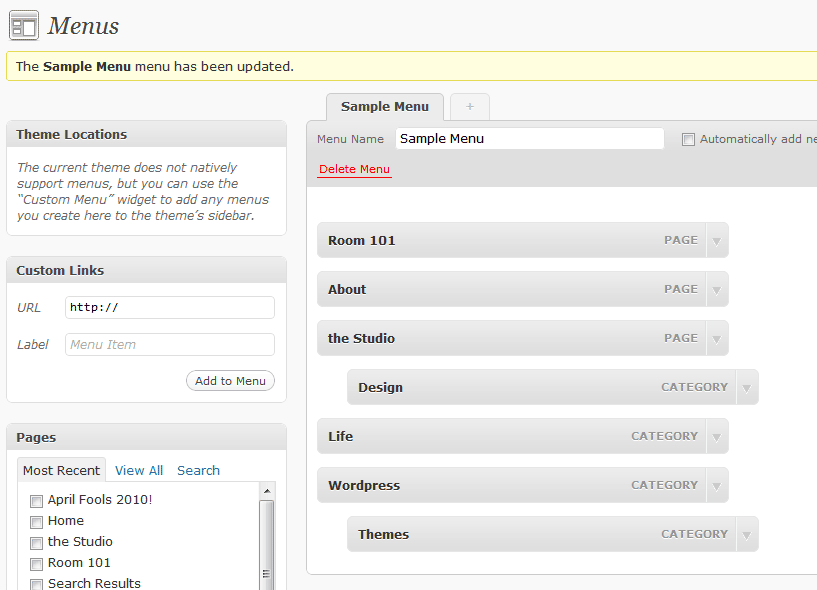
- Choose Appearance > Menus from the left sidebar menu to open the Menus screen.
- Give your menu a name. You will use this to identify your menu later when you place it in your theme. This label will not appear on your site.
- Click Create Menu to create your menu. You will see a message at the top of the screen letting you know that your menu was successfully created.
Now you can add some links to your menu. You can choose from pages on your site, categories, and custom links to other URLs. Select the check boxes next to the links you want to add to your menu and then click the Add To Menu button. If you want to link to a URL that is not part of your Web site, enter the URL in the custom links section, give it a title, and click the Add To Menu button. The links you have chosen will now appear below the title of the menu you have just created.
To edit the details of a menu item (such as the title that will display on the front end of your site), click the arrow next to the menu item’s name. You will see an expanded options box that will allow you to make the necessary changes. To re-order the menu, click and drag a menu item into the position you want.
Once you have your menu setup, click Save Menu to save your changes. You will see a confirmation message at the top of your screen to let you know that your menu has been updated.
Adding a Custom WordPress Menu to Your Site
If your theme natively supports one or more custom menus, you can add your new menu to it. On the left side of the Menus screen, you will see a section labeled “Theme Locations.” You can select your new menu from the drop-down menu to assign it to an available position in your theme. Click Save to activate the menu on your site.
If the Theme Locations section does not show any theme-supported menu positions, you can add your new menu to your theme as a widget. Choose Appearance > Widgets and drag the Custom Menu widget into a widgetised area. Give your menu a title and choose the menu you want to use from the drop-down menu in the widget options.
Working With WordPress Menus Screencast Video
[pro-player width=’630′ height=’453′ type=’video’]https://www.brentwoodwebdesign.co.uk/wp-content/uploads/menus.mp4[/pro-player]